Owning an Apple Watch is a fantastic experience, but knowing exactly when your protection ends is just as important as using the device itself. Whether you bought your watch brand new, picked up a refurbished model, or received it as a gift, understanding your coverage status can save you significant time and money if something goes wrong. Many users wonder how to check Apple Watch warranty status without digging through old email receipts or calling support lines. Fortunately, Apple has made this process incredibly simple through several digital tools.
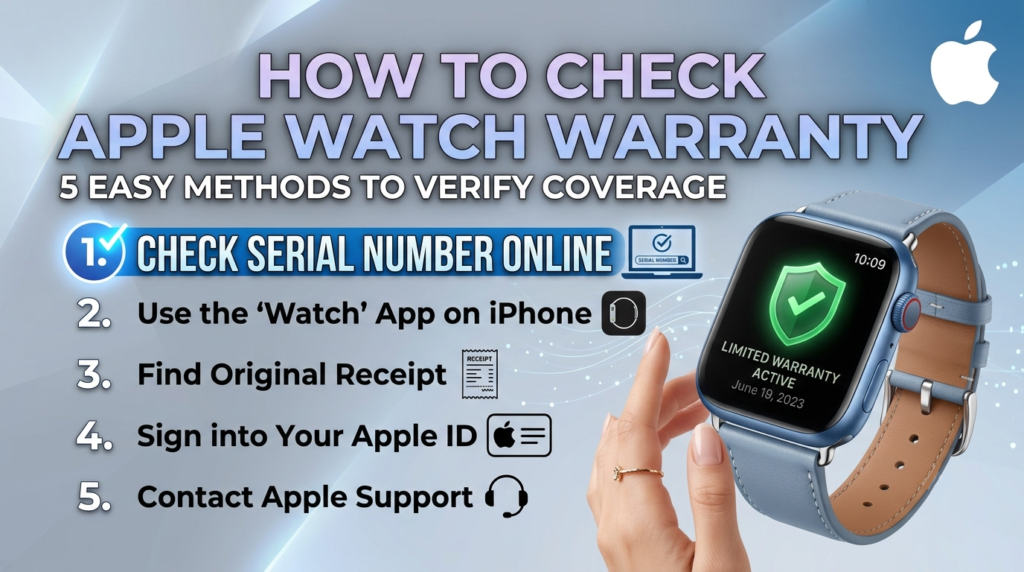
In this guide, we will walk you through five distinct and easy methods to verify your coverage. We will also explain exactly what your warranty covers, the differences between the standard limited warranty and AppleCare+, and what costs you might face if your coverage has expired. By the end of this post, you will be an expert on your device’s protection plan.
Why Knowing Your Warranty Status Matters
Before we dive into the steps, it is helpful to understand why checking your status is so critical. Your Apple Watch comes with a standard warranty that covers manufacturing defects, but it does not cover accidental damage like drops or water exposure unless you have an additional plan. If your screen cracks or the battery fails due to normal wear, you could be looking at expensive repair bills if you are not covered.
Knowing your status helps you decide if you need to purchase AppleCare+ for extended protection or if you are safe to wait. It also verifies the authenticity of the device if you are buying used, ensuring the watch hasn’t been reported as stolen or locked. Let’s explore the five easiest ways to get this information instantly.
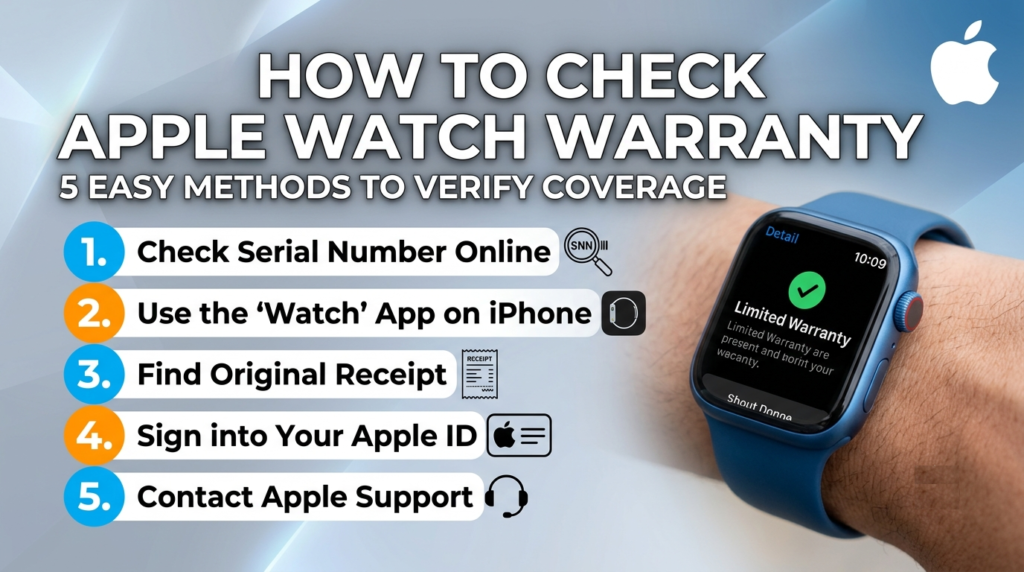
5 Easy Methods to Verify Your Coverage
There is no single “right” way to check your status. You can use your iPhone, your Mac, a web browser, or the dedicated Apple Support app. Here are the five most reliable methods.
Method 1: Using the Apple Support App
One of the most convenient ways to see information about all your Apple products is by using the Apple Support app. This app is designed to give you a quick overview of every device linked to your Apple ID, including your Apple Watch.
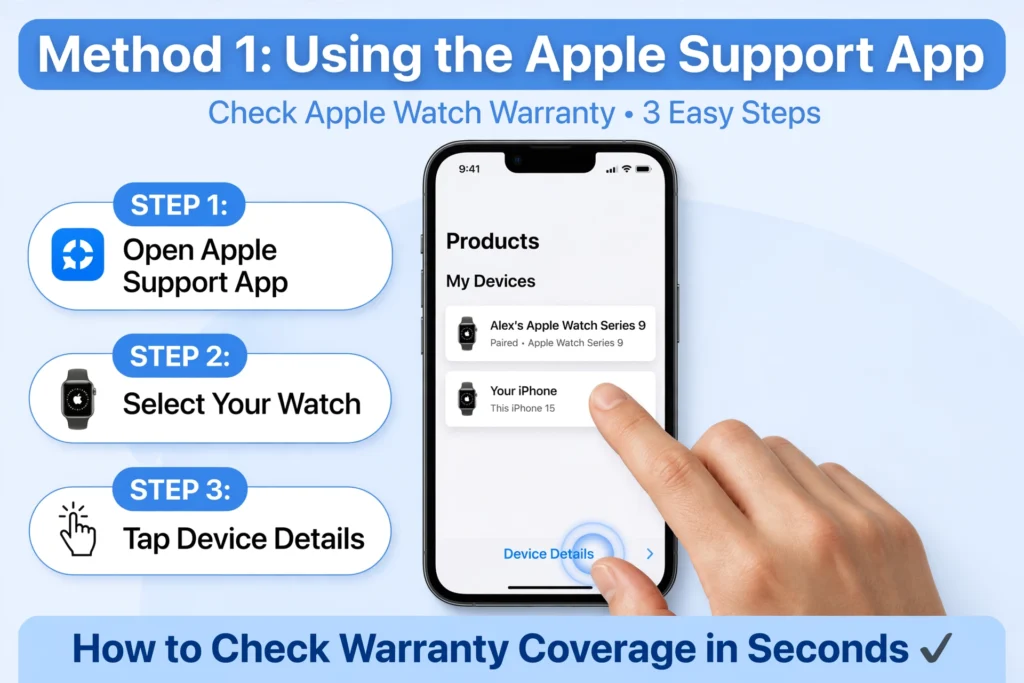
To use this method, simply download and install the Apple Support app from the App Store if you haven’t already. Once installed, log in with your Apple ID. The app will automatically display a list of your devices. Select your Apple Watch from the list to view its specific details. Tap on “Device Details” to see your current warranty coverage information, including expiration dates and eligibility for support. This method is particularly useful because it aggregates data for all your devices in one place, so you don’t have to search for serial numbers manually.
Method 2: Checking via the Watch App on iPhone
If you have your iPhone handy, this is often the fastest method. Your Apple Watch links its warranty information directly to the paired iPhone, making it easy to access without leaving the Apple ecosystem.
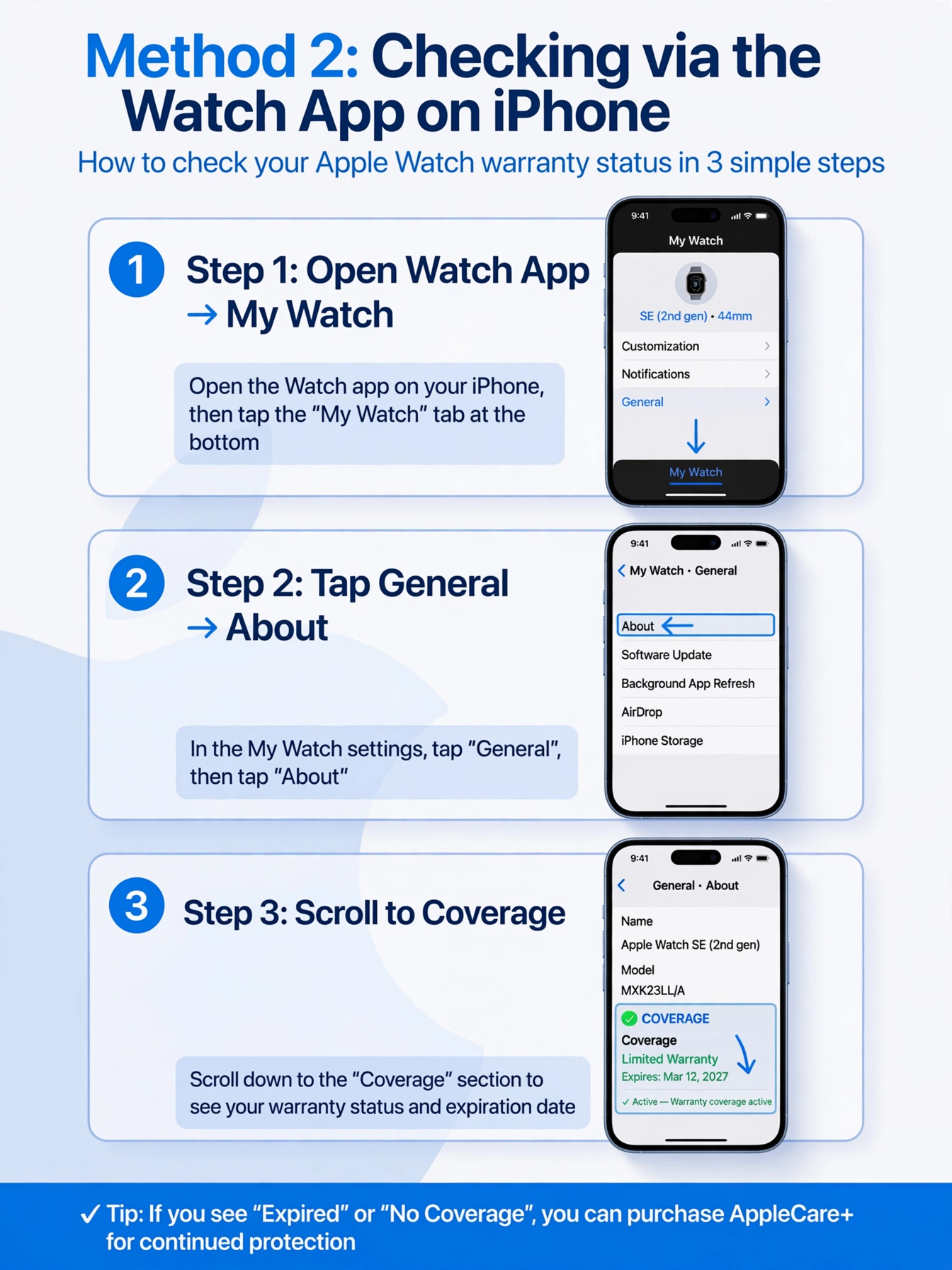
Open the Watch app on your iPhone. Tap on “My Watch” at the bottom of the screen, then select your specific device name if you have multiple watches paired. Navigate to General and then tap on About. Scroll down until you see the “Coverage” section. Tapping on this will show you the status of your hardware coverage and any AppleCare+ plans you might have.
This section also provides your serial number, which is essential if you need to use other verification methods. It is a quick, native way to confirm that your device is recognized by Apple and to see exactly when your protection expires.
Method 3: Using System Settings on a Mac
For users who prefer working on their computer, macOS allows you to check warranty details directly within the system settings. This is a seamless process that requires no web browsing.
Click the Apple menu in the top-left corner of your screen and open System Settings. Select General from the sidebar, and then click on About. In this menu, look for the AppleCare & Warranty section. Clicking here will display the coverage status for your connected devices, including your Apple Watch if it is linked to your account.
This method is excellent for Mac users who want to verify coverage for multiple devices simultaneously, as the interface clearly lists expiration dates for both hardware and accidental damage protection if AppleCare+ is active.
Method 4: The Online Check Coverage Tool
If you do not have your iPhone or Mac nearby, or if you are checking a device that isn’t currently paired to your phone, the official Apple website is your best option. The “Check Coverage” tool is available to anyone with an internet connection.
Visit checkcoverage.apple.com to begin. This tool requires you to input your device’s serial number and a CAPTCHA code for security. Once you enter the serial number and click continue, the page will load your device’s product name, serial number, and detailed warranty information.
The results will tell you if your standard one-year warranty is active or expired, along with the exact expiration date. It will also show your AppleCare+ status, indicating if you have an active plan, if you are eligible to buy one, and how many days remain to add coverage. This is the most definitive method for verifying activation status, which is critical when buying a device advertised as “new and sealed” to ensure it hasn’t been used before.
Method 5: Checking Through Your Apple ID Account
Another powerful method that doesn’t require the physical device is checking through your Apple ID account online. If you no longer have the serial number handy, your Apple ID can still show warranty information for devices linked to your account.
Sign in to appleid.apple.com and navigate to the Devices section. Select your Apple Watch from the list of devices associated with your account. This page provides a summary of the device, including its warranty status and coverage details. This is particularly helpful if you have sold or lost your watch but need to verify its status for insurance or resale purposes, provided it was still linked to your account at the time.
Understanding Your Warranty Coverage
Once you know how to check Apple Watch warranty status, the next step is understanding what the results actually mean. Apple offers different layers of protection, and knowing the difference can prevent surprise repair bills.
The Standard Limited Warranty
Every new Apple Watch comes with a standard limited warranty. In the United States and many other regions, this warranty lasts for one year from the date of purchase. In the European Union, consumer laws often extend this statutory warranty to two years.
This standard warranty covers manufacturing defects and hardware malfunctions that occur under normal use. For example, if a button stops working due to a factory error or the screen fails without being dropped, you are likely covered. It also covers the Apple-branded accessories that come in the box with your product, such as the charging cable, against manufacturing issues for the same one-year period.
However, it is crucial to note what this warranty does not cover. The standard warranty explicitly excludes accidental damage, such as cracked screens from drops, dents, or scratches. It also does not cover liquid damage, even if the watch is marketed as water-resistant, as water resistance can degrade over time. Cosmetic damage and normal wear and tear, such as battery capacity diminishing over time, are also excluded.
AppleCare+ for Apple Watch
To get protection beyond the standard limits, many users opt for AppleCare+. This plan extends your hardware coverage and adds significant benefits. While the standard warranty is one year, AppleCare+ can extend your coverage to two or three years depending on your region and plan choice.
The biggest advantage of AppleCare+ is accidental damage protection. If you drop your watch and crack the screen, or if it suffers liquid contact, AppleCare+ covers the repair for a service fee. Without this plan, you would have to pay the full out-of-warranty cost, which can be very high.
AppleCare+ also includes battery service. If your battery holds less than 80% of its original capacity during the coverage period, Apple will replace the battery for free. Under the standard warranty, battery wear is considered normal and is not covered unless it is a defect. Additionally, AppleCare+ provides 24/7 priority access to technical support, ensuring you can get help whenever you need it.
What Is Covered and What Is Not
Understanding the fine print is essential. Here is a detailed breakdown based on official guidelines.
Covered Issues
- Manufacturing Defects: Issues arising from errors in materials or workmanship are fully covered.
- Hardware Malfunctions: Components failing without user intervention are covered.
- Battery Defects: Specifically, batteries that drop below 80% capacity are covered only if you have AppleCare+.
- Included Accessories: The charger and cable included in the box are covered for one year.
Excluded Issues
- Accidental Damage: Drops, cracks, and smashed screens are not covered by the standard warranty.
- Liquid Damage: Water exposure is excluded unless you have AppleCare+.
- Cosmetic Damage: Scratches, dents, and worn-out bands (unless part of a specific AppleCare+ term for the included strap) are not covered.
- Unauthorized Repairs: If you have your watch repaired by a shop that is not Apple-authorized, your warranty is voided.
- Normal Wear and Tear: The gradual decline of battery life or wear on the casing is not a defect.
- Lost or Stolen Devices: The standard warranty does not cover loss or theft. Even with AppleCare+, you need the specific “Theft and Loss” add-on to claim a replacement for a stolen watch.
Costs, Fees, and AppleCare+ Pricing
Knowing the potential costs is a major part of managing your device. Repair costs can vary significantly depending on your model and coverage status.
AppleCare+ Pricing
The cost of AppleCare+ varies by model. For example, for an Apple Watch Series 9, the plan costs $4 a month or $79 total for two years. For the Apple Watch SE, the cost is lower, at $2.49 per month or $49 for two years. The Apple Watch Ultra, being a more rugged and expensive device, has higher associated service fees but similar plan structures.
You can purchase AppleCare+ when you buy your new device or within 60 days of your original purchase. After this window, you may no longer be eligible unless you undergo a diagnostic inspection.
Service Fees for Repairs
If you have AppleCare+ and need to file a claim for accidental damage, you will pay a service fee rather than the full repair cost.
| Device Model | Service Fee (Accidental Damage) | Theft & Loss Fee |
|---|---|---|
| Standard Apple Watch | $69 | $119 |
| Apple Watch Ultra | $79 | $119 |
Without AppleCare+, repairs for issues like a cracked screen or liquid damage are not covered, and you would be responsible for the full out-of-warranty cost, which can reach up to $499 for an Apple Watch Ultra.
Important Considerations for Buyers
Whether you are buying new, refurbished, or used, there are specific warranty rules you must know.
Refurbished Apple Watches
Buying refurbished from Apple is a safe option. All refurbished Apple Watch models sold directly by Apple are certified and come with a one-year warranty, just like new products. This gives you the same peace of mind as buying a brand-new device. Some third-party sellers also offer warranties, such as 12-month warranties on restored watches, but these are provided by the seller, not Apple.
Used and Second-Hand Watches
When buying a used Apple Watch, the warranty situation is different. The standard one-year limited warranty starts from the original date of retail purchase, not the date you buy it second-hand. This means if the previous owner bought the watch six months ago, you only have six months of warranty left.
It is critical to check the activation status when buying used. If a device is advertised as “new and sealed” but the warranty shows it was activated months ago, it is not new. Also, ensure that Activation Lock has been removed by the previous owner; otherwise, the watch may be unusable. Note that unauthorized repairs performed by the previous owner will void the warranty for you.
International Warranty Rules
A common question for travelers is whether their warranty works abroad. The reality is complex. Apple’s warranty is generally country-specific. While the EU is often treated as a single warranty region, service in other countries is not guaranteed.
If you purchase an Apple Watch in the US and travel to Europe, or vice versa, you may be required to have the service performed in the country of purchase. Some Apple Authorized Service Providers may decline service on devices purchased in a different region. Therefore, if you travel frequently, it is wise to keep your proof of purchase and be prepared to ship the device back to the country of origin if a warranty claim is necessary. There is no true “international warranty” for portable Apple products like the Watch.
How to Find Your Serial Number
To use the online check tools or speak with support, you will need your serial number. Here is how to find it easily.
- On your iPhone: Open the Watch app, tap My Watch, go to General > About, and look for the Serial Number field.
- On your Apple Watch: Open the Settings app on the watch itself, go to General > About, and find the serial number there.
- On the Device: Look at the back of the Apple Watch case, near the sensor housing. The serial number is engraved there along with the model details.
- On the Packaging: If you still have the original box, the serial number is printed on the label.
Having this number ready makes the process of verifying how to check Apple Watch warranty status much faster and more accurate.
Conclusion
Verifying your coverage is a simple task that protects your investment. Whether you use the Apple Support app, the Watch app on your iPhone, your Mac’s system settings, the online Check Coverage tool, or your Apple ID page, you have multiple reliable options to get the information you need.
Remember that the standard warranty covers manufacturing defects for one year but excludes accidental damage and normal wear. For comprehensive protection against drops, liquid, and battery wear, AppleCare+ is the recommended choice. Always verify the activation status and remaining coverage when buying used or refurbished devices to avoid unexpected costs. By staying informed about your warranty status, you ensure that your Apple Watch remains a reliable companion for years to come.